Introduction
The code must be entered using the keypad in the control panel menu: “Options > Activations”.
Step 1: Configure the Tecno Out Protocol
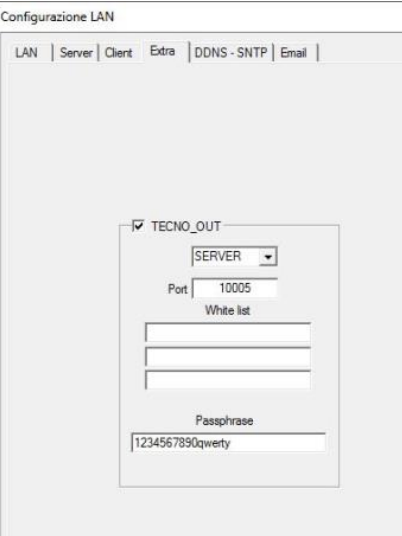
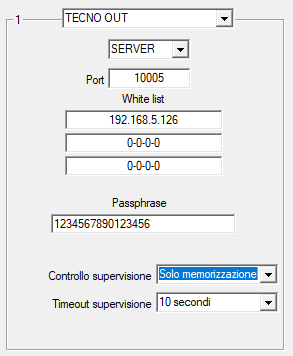
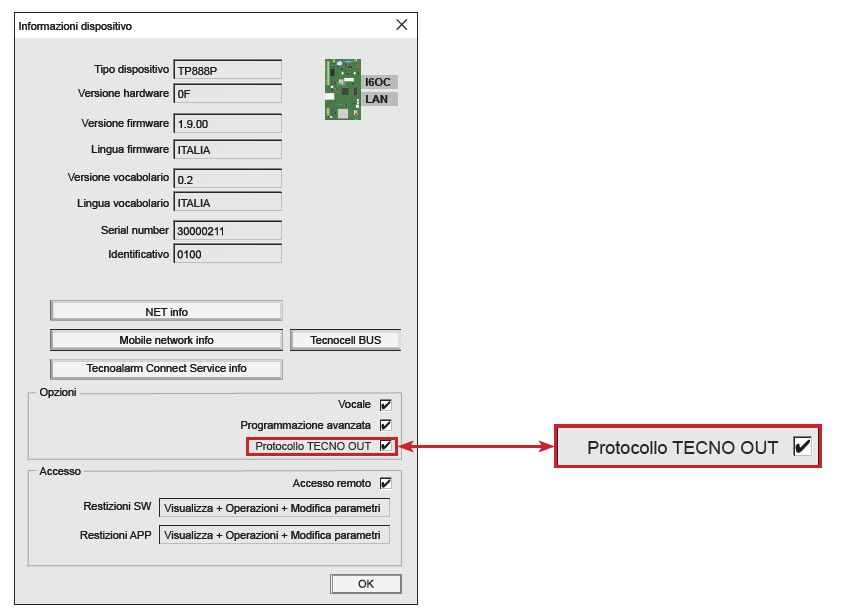
Within the Tecnoalarm Centro software, enable the Tecno Out protocol in server mode, using the default port (10005) and a 16-character passphrase (e.g., 1234567890qwerty; use letters and numbers only).
The security of the Tecno Out protocol is ensured through 128-bit AES encryption.
Step 2: Limit the Connection to Authorized Devices
One of the key features of the Tecno Out protocol is the ability to restrict connections to specific devices (in our case, Aylook). To do this, the Aylook IP address must be added to the whitelist. This ensures that the Tecno Out connection is established exclusively between Aylook and the control panel, enhancing security and reducing the risk of unwanted interference.
In addition, this control allows the EV10-50 control panel to generate an alarm if the Aylook IP address cannot be reached. This function therefore provides supervision between the intrusion detection and video surveillance systems.
Step 3: Verification and Initial Configuration
Step 4: Add the Control Panel to Aylook
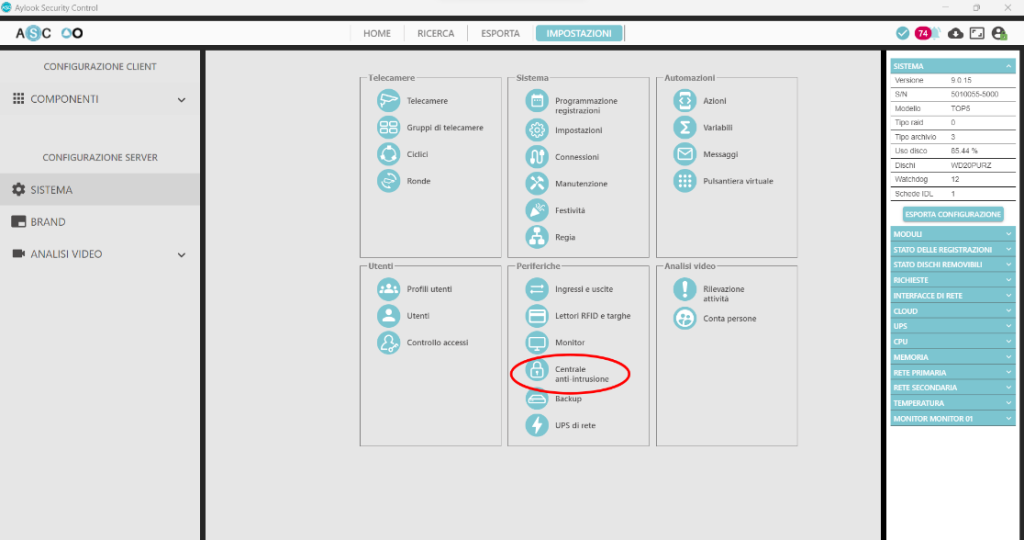
In the Peripherals panel, click the “Intrusion Alarm Control Panels” icon (see Figure 1).
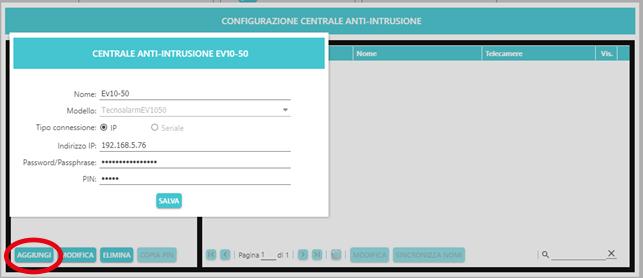
From the “Intrusion Alarm Control Panel Configuration” panel, click “Add”.
A panel will then open for adding the new control panel. Enter the following fields:
Name: Name under which the control panel will be displayed
Model: Select the Tecnoalarm control panel model from the drop-down menu
(Compatible models: EV10-50; TP8-88; TP20-440);
IP Address: IP address of the control panel;
Password: Passphrase previously configured on the control panel;
PIN: User PIN code entered in the control panel Setup.
Once all fields have been completed, click the “Save” button.
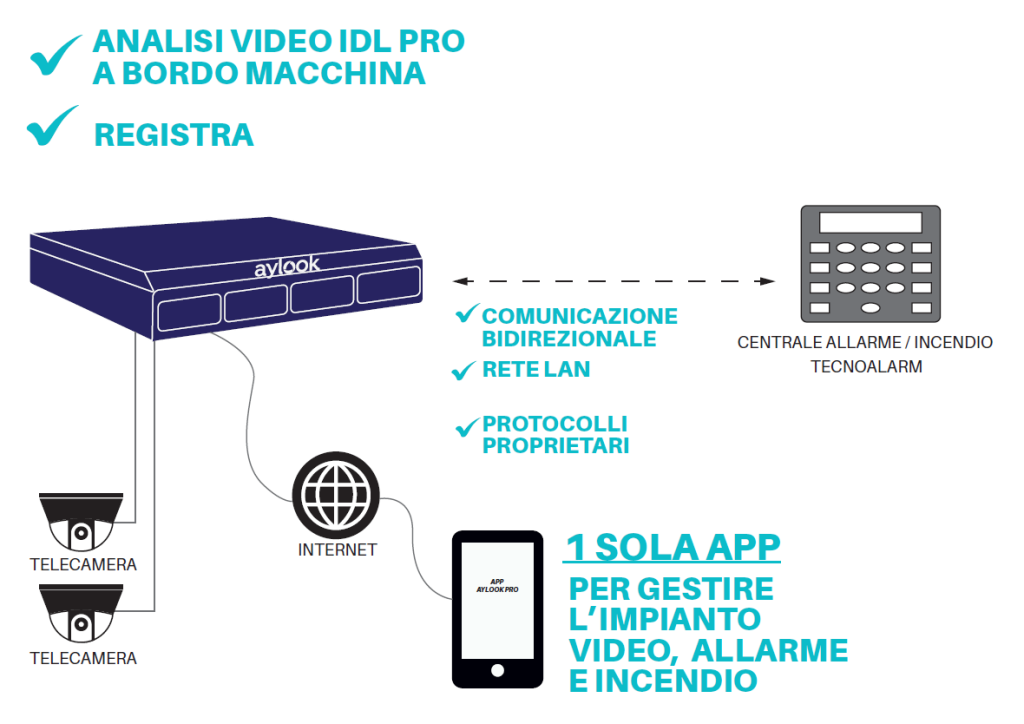
The features available through the Aylook-Tecnoalarm integration are:
- Association of cameras with zones (up to 4 cameras per zone) for immediate video verification;
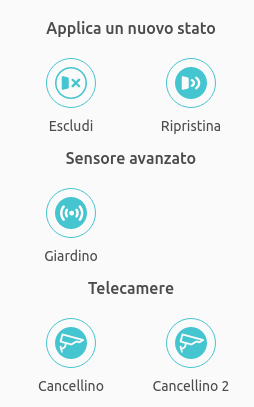
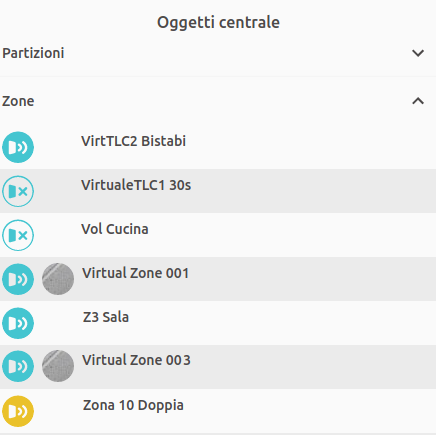
- Management of the 3 main functions directly from Aylook:
- Activate and deactivate programs;
- Bypass and restore zones;
- Activate and deactivate remote controls;
- Association of video analytics events with the control panel;
- Use of a single video and alarm management App.
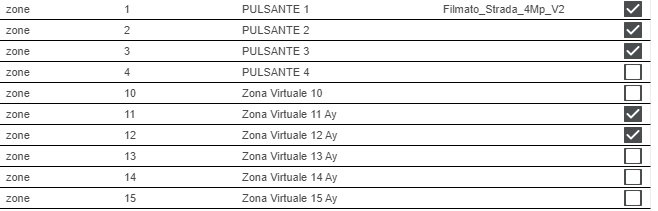
Virtual Zones
Camera states (alarm and tampering) can be associated with virtual zones, which can in turn be included in a control panel program. The camera is therefore supervised by the control panel and treated as a sensor.